|
First time trying one of my Tutorials? Then please check my Terms of Use before you continue
Realistic Chocolate Text
You will need: Font of your choice - Fatter font is better
This is a very simple yet effective Tutorial ... Ok let's begin Open a New Image any size you like, I'm using 600x250 Change your Background to #6f4213 and your Foreground Transparen/Null
Let's get your Text ready Activate your Text Tool ... Change to a suitable Font and a suitable size Make sure it is set to Create As Vector rather than Selection or Floating Click once on your Canvas & type out whatever it is you want to write I'm going to be using the word CHOCOLATE Click on Apply ... Objects> Align>> Center In Canvas Layers> Convert to raster Layer
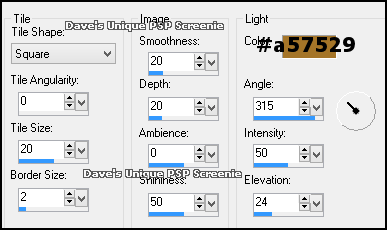
Now let's make the Chocolate Effect Effects> Texture Effects> Tiles .. with the following settings
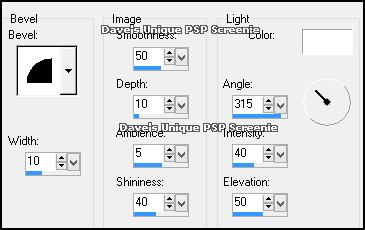
Effects> 3D Effects> Inner Bevel ... with the following settings
And thats it you should now have your very own Chocolate Text
You can now leave feedback and share your result's with me on Dave's Unique PSP's New Fanpage Tutorial written on the 18th July 2013 (originally on 7th March 2010) ©David Hanslip |