|
First time trying one of my Tutorials? Then please check my Terms of Use before you continue
You will need: Font of your choice Tube of your choice - I will be using the artwork of Gaetano Di Falco Unfortunately he no longer sells his art in tube format One of my Templates SpawnsFSTemplate139
Filters: Mura's Meister/Copies Eye Candy 6: Textures/Swirl Eye Candy 6/Gradient Glow Xero/Porcelain (optional) Eye Candy 6/Perspective Shadow (optional)
Ok let's begin Open my Template ... Window> Duplicate ... Close Original ... Delete the Credits layer Activate the Main Background layer ... Paste your Tube as a New Layer Effects> Mura's Meister> Copies ... *Wall paper(rotate) ... default settings
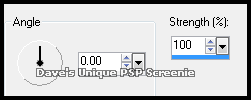
Adjust> Blur> Motion Blur ... with the following settings
Edit> Repeat Motion Blur ... Effects> Edge Effects> Enhance More Layers> Merge> Merge Down
Merge all the Foreground layers together With this Forgeround layer active Paste your Tube as a New Layer Effects> Mura's Meister> Copies ... *Line Activate the Foreground layer again ... Selections> Select All ... Selections> Float Selections> Defloat
Using the Move Tool position the Tube layer so what you want to keep is inside the selection ... with the Tube layer active ... Selections> Invert Edit> Clear ... Selections> Select None Change the layers Blend Mode to Luminance or Luminance(L) Rename this layer Tube Line
Merge all the Lines layers together ... Change the layers Blend Mode to Overlay Activate the Foreground layer again ... Selections> Select All ... Selections> Float Selections> Defloat ... Layers> New Raster Layer Flood Fill the Selections with a color from your Tube ... Selections> Select None Rename this layer Color ... Hide this layer for the moment
Activate the Border layer ... Selections> Select All ... Selections> Float Selections> Defloat ... Selections> Modify> Expend ... by 2 Layers> New Raster Layer Flood Fill the Selection with the same color from your Tube you just used Selections> Select None ... Adjust> Add/Remove Noise> Add noise ... with the following settings
Layers> Merge Down Effects> Eye Candy 6> Perspective Shadow ... Settings ... Drop ... Height 0
Merge all the Frame layers together ... Selections> Select All ... Selections> Float Selections> Defloat ... Layers> New Raster Layer Flood Fill the Selections with colors from your Tube (I used 2 colors) Selections> Select None ... Effects> Eye Candy 6: Textures> Swirl Click on the "Settings" tab and then on the "Painterly (Needs Source Image)" folder then click on "Frosted Glass, Patchy " so it is highlighted blue Click on the "Basic" tab and click the "Random Seed" button once
Effects> Eye Candy 6> Gradient Glow ... with the following settings
Rename this layer Frame and Delete the original Frame layer
Paste your Tube as a New Layer ... Apply a shadow ... I used Effects> Eye Candy 6> Perspective Shadow ... Settings ... Drop ... Blurry And changed angle to a suitable one Effects> Xero> Porcelain ... all Color Channels set to 0 In your layer palette move this layer below the Border layer
Add Copyrights and your Name ... Hide the following layers Copyrights ... Your Name ... Border ... Tube ... Frame ... Main Background
ANIMATING
Go back to Animation Shop ... Edit> Paste> After Current Frame Activate the first frame ... Effects> Insert Image Transition
Click on Customize
Click on OK then click on OK again Activate the first frame ... Edit> Copy ... Hold down CTRL and keep pressing L twice Activate the last frame ... Edit> Copy ... Hold down CTRL and keep pressing L twice This is your Animation ... Minimize for the moment
Edit> Copy Special> Copy Merged ... Go back to Animation Shop Hold down CTRL and keep pressing L until you have 16 frames
Activate your Animation ... Edit> Select All ... Edit> Copy Activate the image with Background Frames ... Edit> Select All Edit> Paste> Into Selected Frames ... move into position and click once
Return to PSP hide the Bottom 4 layers and unhide all other layers Edit> Copy Special> Copy Merged ... Go back to Animation Shop Edit> Paste> As New Animation ... Edit> Copy Hold down CTRL and keep pressing L until you have 16 frames
Edit> Select All ... Edit> Copy Activate your Animation ... Edit> Select All Edit> Paste> Into Selected Frames ... move into position and click once Animation> Frame Properties ... change to 13
Tutorial written on 18/12/16 ©David Hanslip |