|
First time trying one of my Tutorials? Then please check my Terms of Use before you continue
You will need: Font of your choice - I used one called PENHURSB Tube of your choice - I will be using the artwork of VeryMany License and Tubes now available at Verymanytubes One of my Templates SpawnsFSTemplate060
Filters: DSB Flux/Bright Noise Eye Candy 6: Textures/Swirl Eye Candy 6/Gradient Glow Eye Candy 6/Perspective Shadow (optional) Mura's Meister/Copies Xenofex 2/Constellation Xero/Porcelain (optional)
Ok let's begin Open my Template ... Window> Duplicate ... Close Original ... Delete the Credits layer Paste your Tube as a New Layer ... Resize if needed ... Position in middle of your canvas Effects> Mura's Meister> Copies ... *Line ... change the number to 5 Move this layer so it is above the Main Background layer Using the Move Tool move it around so that what you want to see is visible
Effects> Xenofex 2> Constellation Click on Settings and then A Few Small Stars Click on keep original image and hit Random Seed button once Change this layers Blend Mode to Luminance or Luminance(L)
Activate the Foreground layer In your Materials Palette change your Foreground to a Dark color from your Tube and your Background to a Light from your Tube Effects> Eye Candy 6: Textures> Swirl
Click on the Settings tab and then on the Painterly (needs source image) folder Then click on Random Twists so it is highlighted blue
Click on the Basic tab and under color source click Add Swirl to a Solid Color and then change it to your Background Color ... Click the Random Seed button once
Merge all of the Lines Strip layers and the Left Stripes layer together and with this new merged layer active ... Selections> Select All ... Selections> Float Selections> Defloat ... Layers> New Raster Layer Flood Fill the Selections with your Foreground color ... Selections> Select None Rename this layer Flux ... Duplicate this layer twice (for a total of 3)
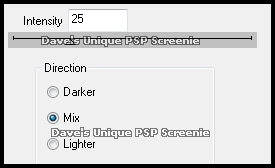
Activate the Flux layer again ... Effects> DSB Flux> Bright Noise
Activate the Copy of Flux layer Effects> DSB Flux> Bright Noise ... click on the Mix button once then on ok Activate the Copy (2) of Flux layer Effects> DSB Flux> Bright Noise ... click on the Mix button once then on ok Hide the 2 top Flux layers for now
Paste your Tube as a New Layer ... Resize if needed and position where you like Effects> Eye Candy 6> Gradient Glow ... Settings ... Simple (thin) ... Black Click on the Basic tab and change the Glow Radius to 4 and color to a 3rd from your Tube
Activate the merged layer from earlier (below flux) Effects> Eye Candy 6> Gradient Glow ... change Glow Radius to 3 Activate the Main Background layer and Flood Fill it with your Gradient Glow color
Activate the Tube layer Effects> Eye Candy 6> Perspective Shadow ... Settings ... Drop ... Blurry Effects> Xero> Porcelain ... all Color Channels set to 0
Activate the Border layer Selections> Select All ... Selections> Float ... Selections> Defloat Flood Fill the Selection with your Foreground color Selections> Select None ... Effects> DSB Flux> Bright Noise ... same settings as earlier Effects> Eye Candy 6> Gradient Glow ... same settings as before Add Copyrights and your Name
ANIMATING
Go back to Animation Shop ... Edit> Paste> After Current Frame Go back to Animation Shop ... Edit> Paste> After Current Frame
Tutorial written on 27/12/16 ©David Hanslip |